2021.02.26.

The readability of GTD list managers

Three was a topic I saw a couple of days ago on /gtd, where redditors discussed which GTD app is the most good looking. It reminded me of a problem I wanted to write about for a while now: their list design’s readability. I know OmniFocus, Things, and Reminders well, so I concluded my experience about their typography below:

A lot of people would say it’s Things. It has a friendly UI, but from a readability point of view, it is one of the worst.

In my daily work, I have two problems with Things:

  • It only displays one line per task, which means, if you have longer task titles, you’ll end with a bunch of text clipped out, which is annoying on an iPhone. You have to open each task to see the full title, which is no fun when you quickly want to review your errands list.
  • Things displays every task list grouped by project. If you like me, you’ll usually have one next action per project, so having each project being this prominent is making your lists very noisy.

I stopped using Things because of these issues, and I switched back to OmniFocus, which displays full task titles, and has nicer list readability overall. Apple Reminder is also good at showing lists, which matters the most at the end, so I would go with OmniFocus and Reminders.

Let’s see these apps next to each other. From left to right are OmniFocus, Reminders, and Things.
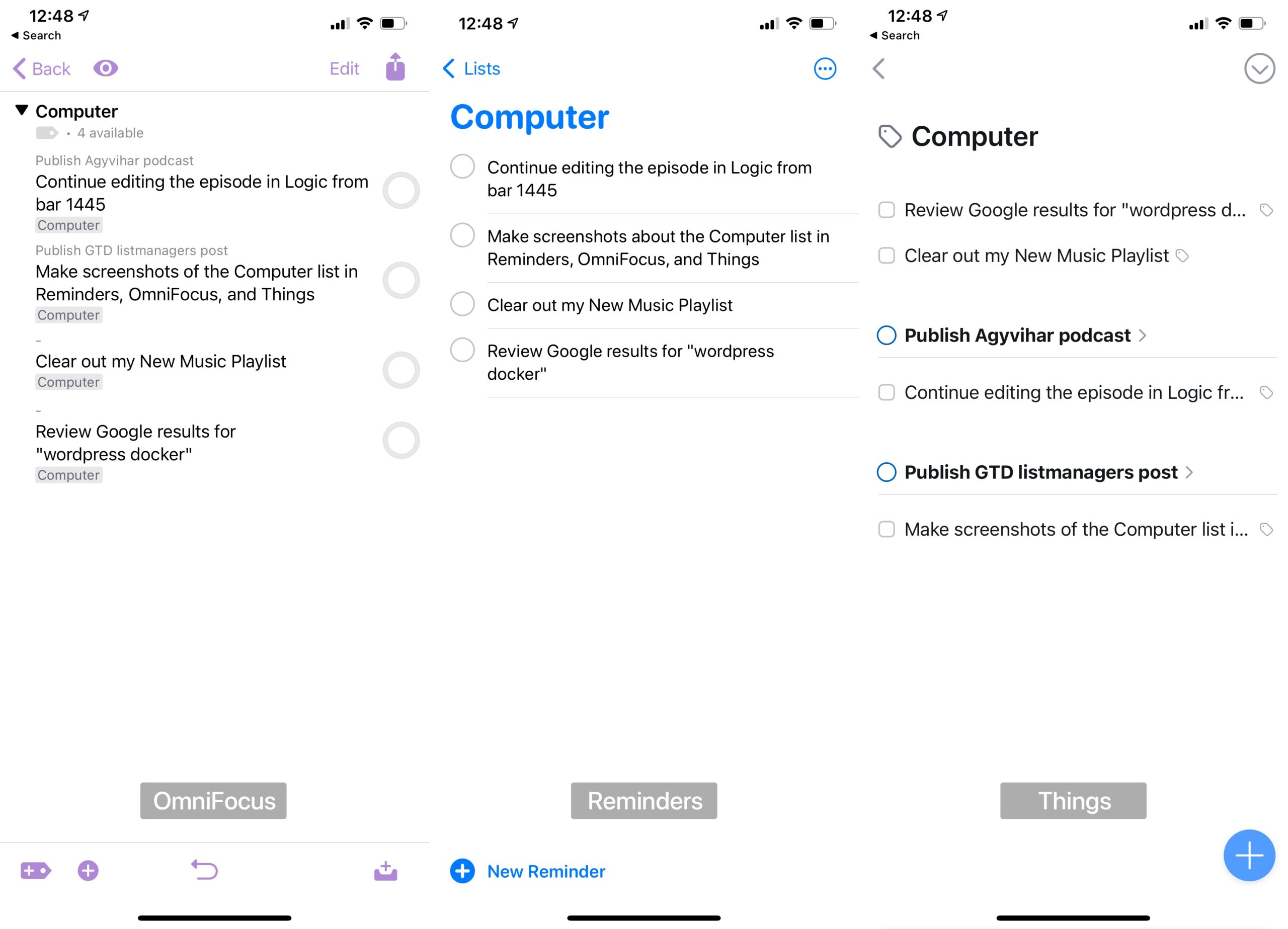
As you can see, Things overflows the text and group actions by projects which makes the readability of a typical next actions list much worse. It was the main reason I left Things after using it for two years and switched back to OmniFocus.


I also made a switch from OmniFocus to Reminders in December, but that’s a topic of another post.
2020.09.17.

OmniFocus quick-entry iOS 14-ben

Tegnap megjelent az iOS 14, amiben van egy Back Tap nevű funkció. Ezzel a telefonunk hátulját kétszer vagy háromszor megtappolva lefuttathatunk különböző actionöket. Az Apple leírásából:

Back Tap lets you double-tap or triple-tap the back of your iOS device to automatically perform a range of custom tasks — from opening your favorite app to taking a screenshot. Choose from 24 different actions or create your own automated shortcuts to simplify your everyday tasks.

Mivel shortcutok is beállíthatók, így létrehoztam egy, a desktop todo menedzser alkalmazásokban látott quick-entry funkcióhoz hasonló shortcutot, ami bekér egy szöveget, majd azonnal elmenti azt az OmniFocus inboxszomba. Az egészben az a legjobb, hogy ehhez nem kell kilépnem az adott alkalmazásból sem, helyben lerendez mindent. Nagyon hasznos például telefonálás közben.

Az alábbi videóban megnézhető az egész működés közben és a használt shortcut felépítése is.

2020.05.24.

Befejeztem a napokban Sönke Ahrens – How to Take Smart Notes c. könyvét, ami legalább annyira fontos a mentális munkával foglalkozó emberek számára, mint a Getting Things Done könyv David Allentől.

A lényege számomra az volt, hogy felismertem mennyire fontos a külső eszközök használata a gondolkodásunk támogatásához, felszabadítva az agyunk kreatív kapacitásait. A másik big takeaway pedig, hogy mennyire fontos definiálni, szeparálni, majd rutinként beilleszteni egy munkafolyamat különböző lépéseit. Így kézzelfoghatóbbá válik minden bonyolult dolog.

Két jegyzet a könyvből:


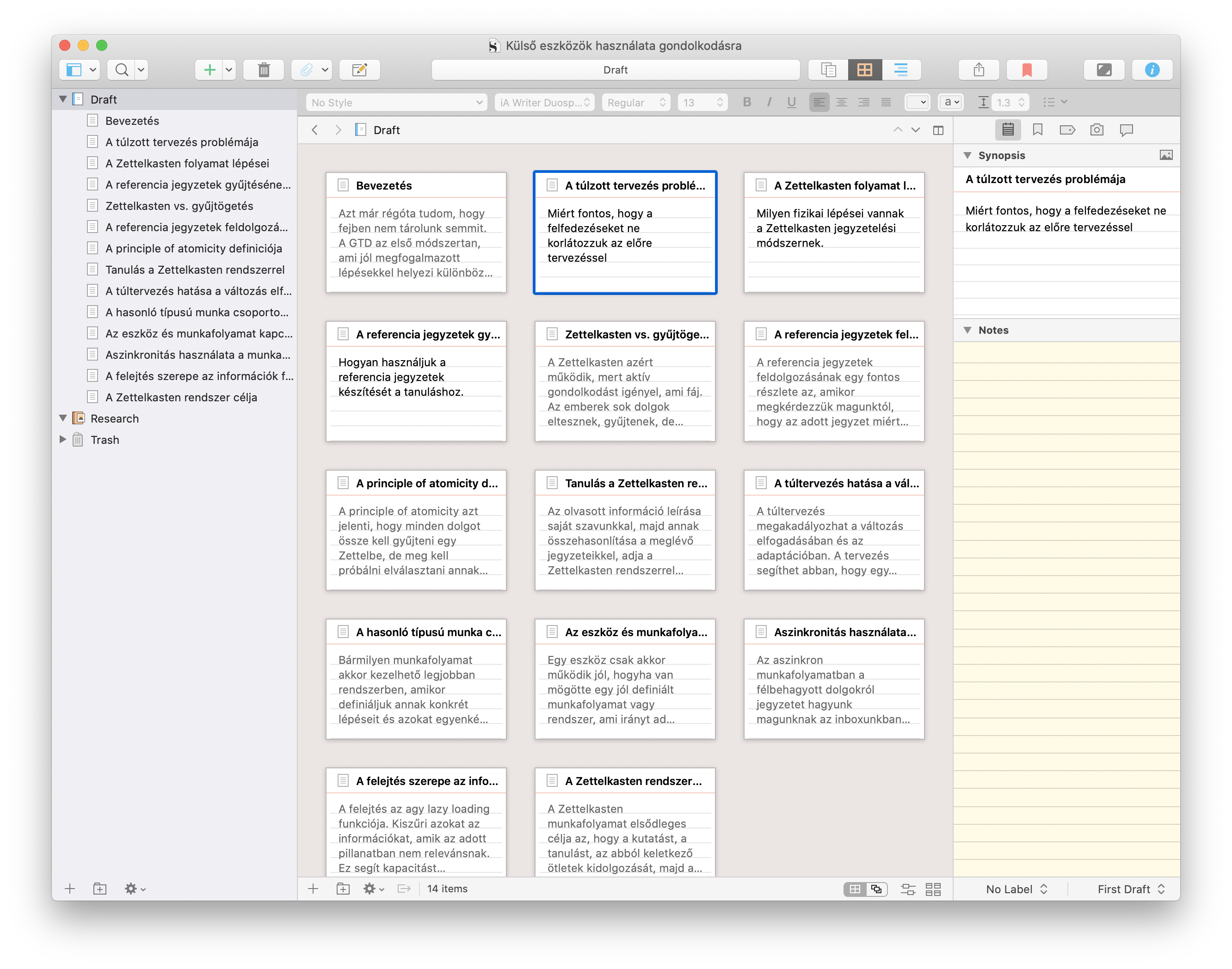
Elkezdtem összegyűjteni és kiválogatni a jegyzeteimet a külső eszközök és a gondolkodás kapcsolatára. A későbbiekben ebből tervezek majd kitenni ide is egy hosszabb blogposztot.

Screen Shot 2020 05 24 at 14 29 21

2020.05.10.

Gyors tipp: sok webes alkalmazás billentyűzettel is irányítható.

Ha kiváncsi vagy ezekre a parancsokra, akkor nyomd meg a kérdőjelet. Az esetek 90%-ban meg fog jelenni egy panel, ami listázza az adott alkalmazásban elérhető billentyűparancsokat.

2020.05.07.

Replying to: Steve Jobs fotói a macOS-ben:

Még annyit az előző poszthoz, hogy a zöld növényes háttereket kifejezetten szeretem. Gondolom a zöld szín nyugtató hatása is közreműködik, de inkább amiatt, hogy munka közben nem látom a természetet, viszont egy rosszabb “emulált” wallpaper változat segíthet ebben.

2020.04.28.

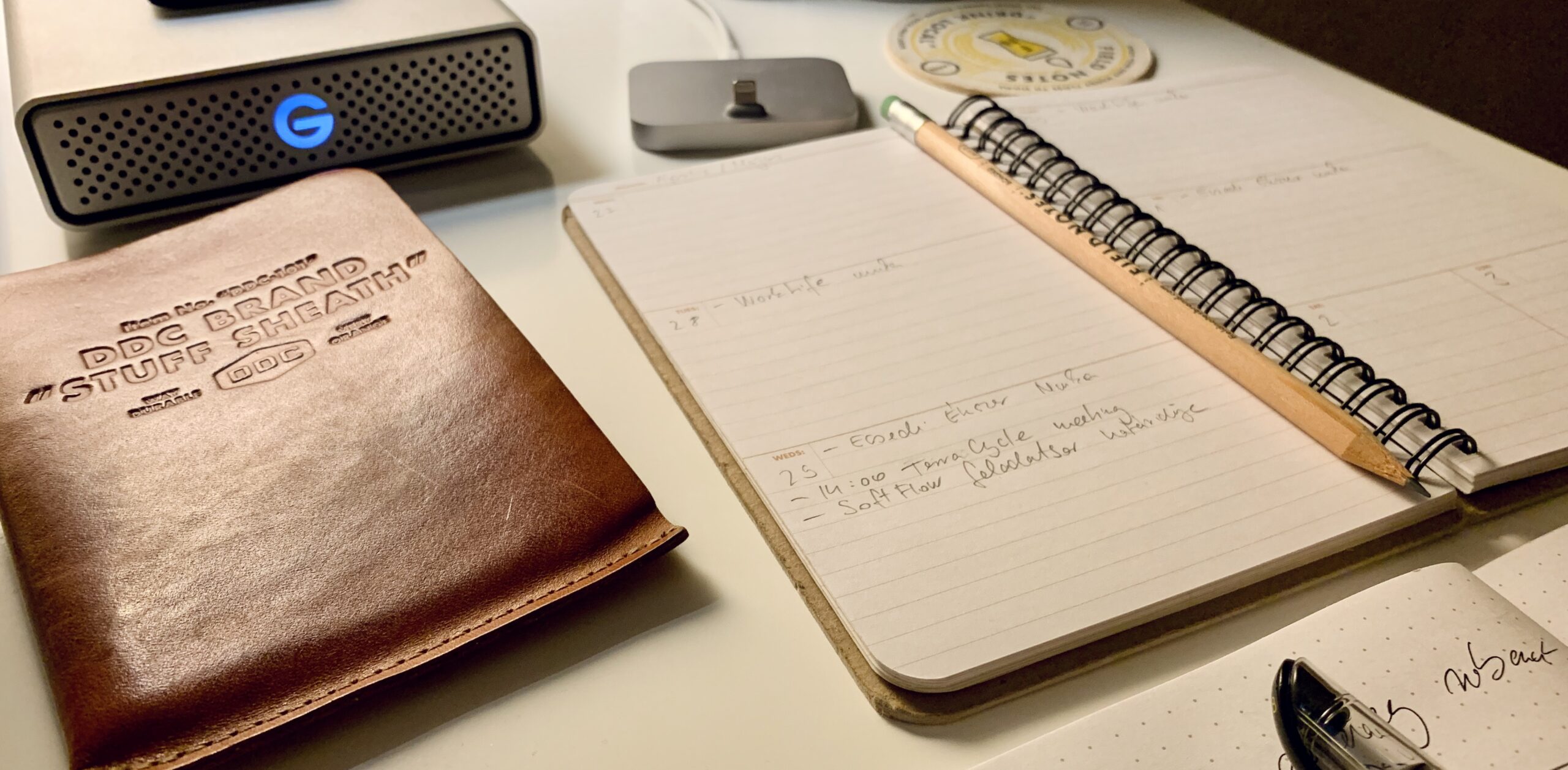
I just grabbed out two old friend from the bottom of the drawer. I have a couple of projects running parallel, so it could be helpful to schedule which client I’m dealing with on which day.

Also capturing notes using analog tools is still the best (I love the smell of that pencil).

2020.04.08.

A Mac-based miracle

Apparently, you can create multiline text replacements on macOS:

It’s possible to use multiline text replacements on Mac, iPhone, and iPad, though you would need to use a Mac to create these text replacements.

On the Mac:

  1. Open System Preferences. Click on the “Keyboard” pane then click on the “Text” tab.
  2. Click the “+” button to add a new text replacement.
  3. Enter the shortcut text in the Replace column.
  4. Paste some multi-line/multi-paragraph text into the With column.

This text replacement syncs across all of your device using iCloud.

2020.02.09.

2020.02.08.

Replying to: rmondello:

I’m using Typinator (because it syncs via iCloud Drive and don’t nag me to use a 3rd-party sync service), and the built-in substitutions.

2020.02.05.

2020.02.02.